
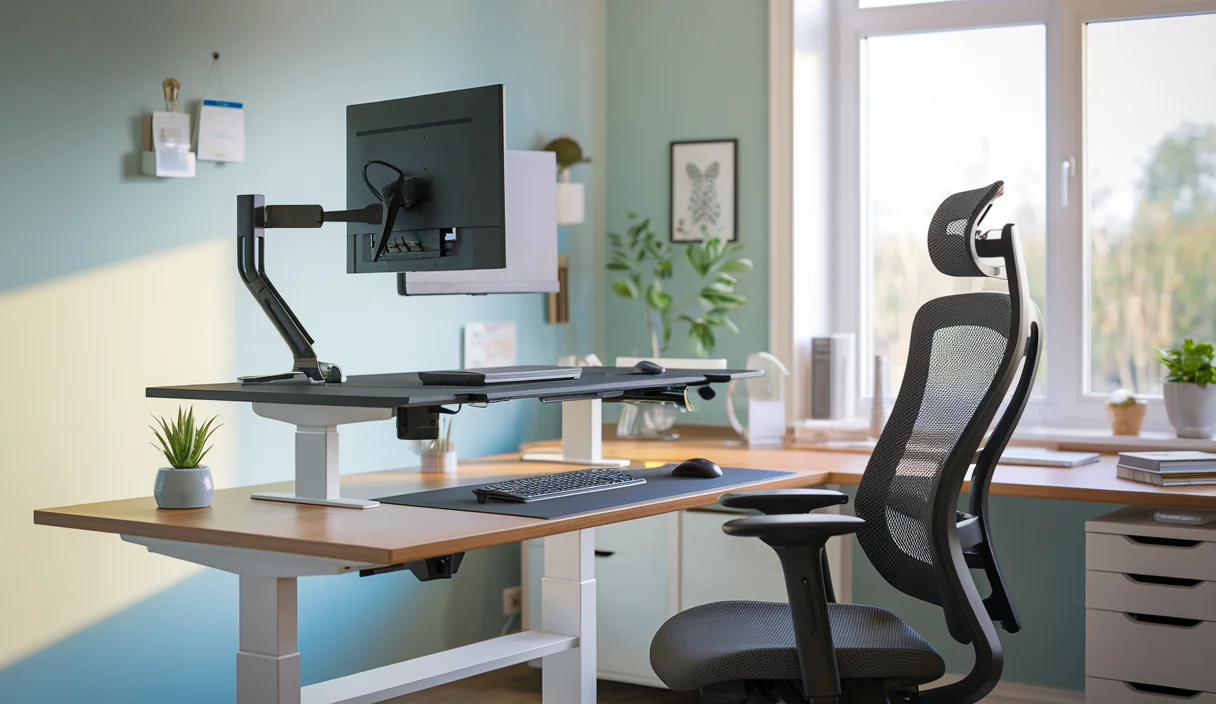

How to Set Up a Healthy Workstation
How to Set Up a Healthy Workstation matters whether you work from home or in an office. A smart setup reduces pain, boosts focus, and keeps your energy steady all day. This guide walks you through clear, practical steps to arrange your desk, monitor, chair, lighting, and movement habits — so you can work comfortably and stay productive.
Quick checklist: The basics of a healthy workstation
Before we dive in, make a quick scan using this checklist. It helps you spot the most common setup problems fast.
- Monitor at eye level and about an arm’s length away
- Chair supports the lower back and allows feet flat on the floor
- Keyboard & mouse near elbow height and easy to reach
- Desk offers enough legroom and surface space
- Lighting reduces glare and eye strain
- Movement breaks every 30–60 minutes
Why ‘How to Set Up a Healthy Workstation’ matters
A proper workstation lowers the risk of neck, back, and wrist pain. It also improves focus and reduces fatigue. Research and trusted sources like the Mayo Clinic emphasize good posture and workspace layout for long-term health — for instance, avoiding storage under the desk so your legs have room to move.
Step-by-step setup
Follow these steps to set up a workstation that supports healthy posture and efficient work.
1. Start with your chair
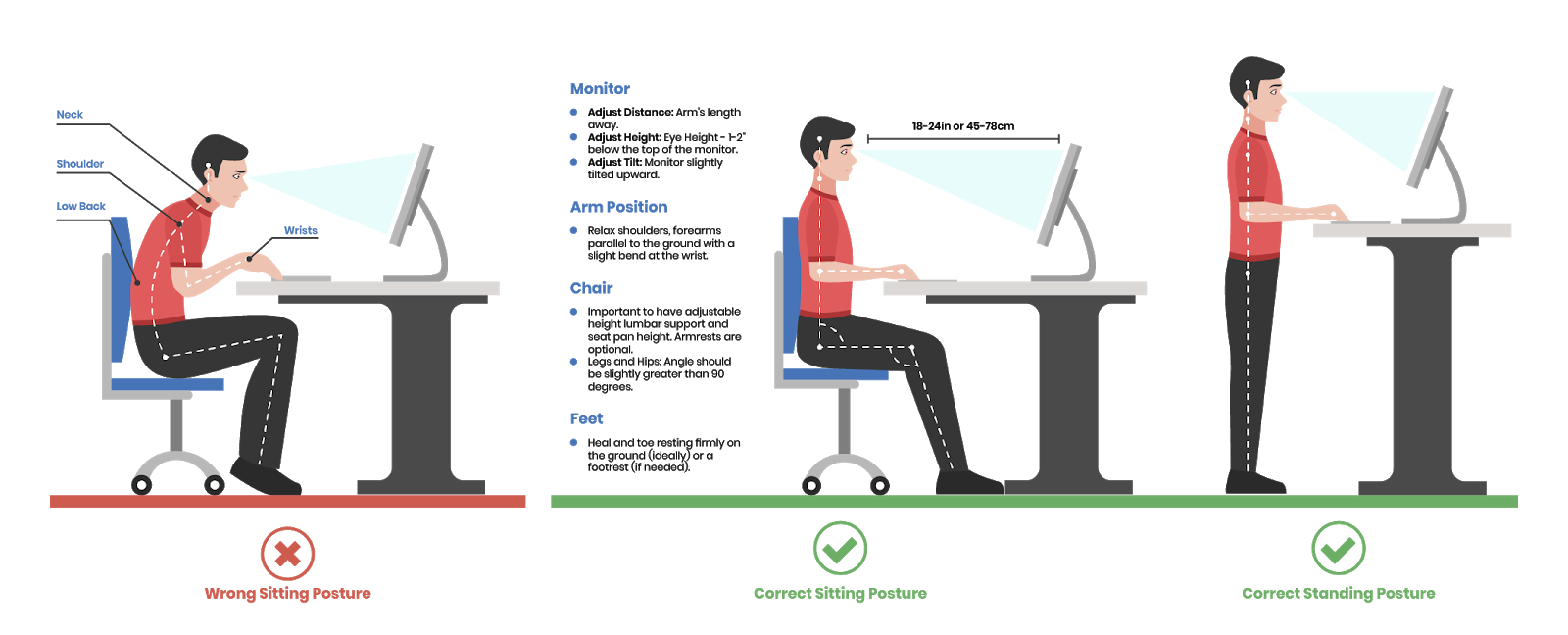
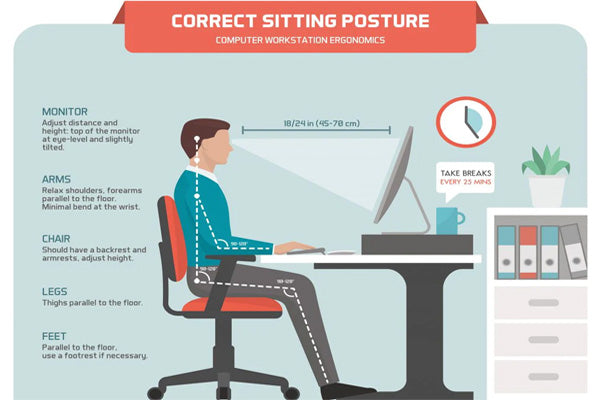
Your chair is the foundation. Adjust it so your feet are flat and your thighs are roughly parallel to the floor. The chair should support your lower back’s natural curve.
- Seat height: Set so your feet rest flat on the floor or on a footrest.
- Seat depth: Leave a 2–3 finger gap between the seat edge and the back of your knees.
- Lumbar support: Adjust to maintain the small inward curve in your lower back.
2. Position your monitor
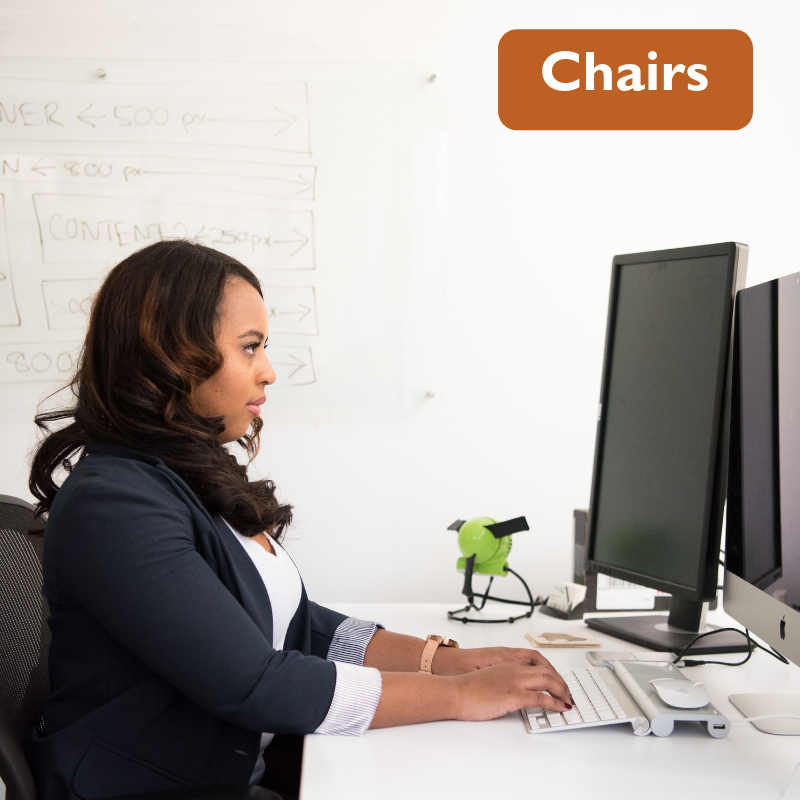
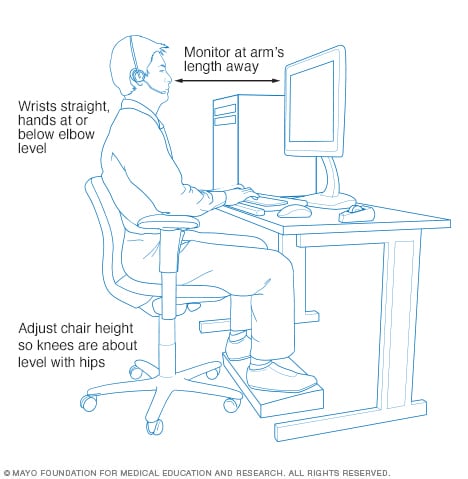
Place the monitor directly in front of you. The top third of the screen should be at eye level so you look slightly down at the screen. This reduces neck strain.
- Distance: about an arm’s length away (roughly 20–30 inches depending on screen size).
- Dual monitors: keep the primary display centered; place the second at the same height and close by.
- Use a monitor arm or riser to fine-tune height and tilt.
3. Set keyboard and mouse
Your keyboard and mouse should be at elbow height so your wrists are straight and shoulders are relaxed.
- Keyboard: Keep it centered and close enough to avoid reaching.
- Mouse: Place it beside the keyboard at the same level; use a padded wrist rest only for short pauses.
- Typing posture: Keep wrists neutral — not bent up or down.
4. Adjust desk height & layout
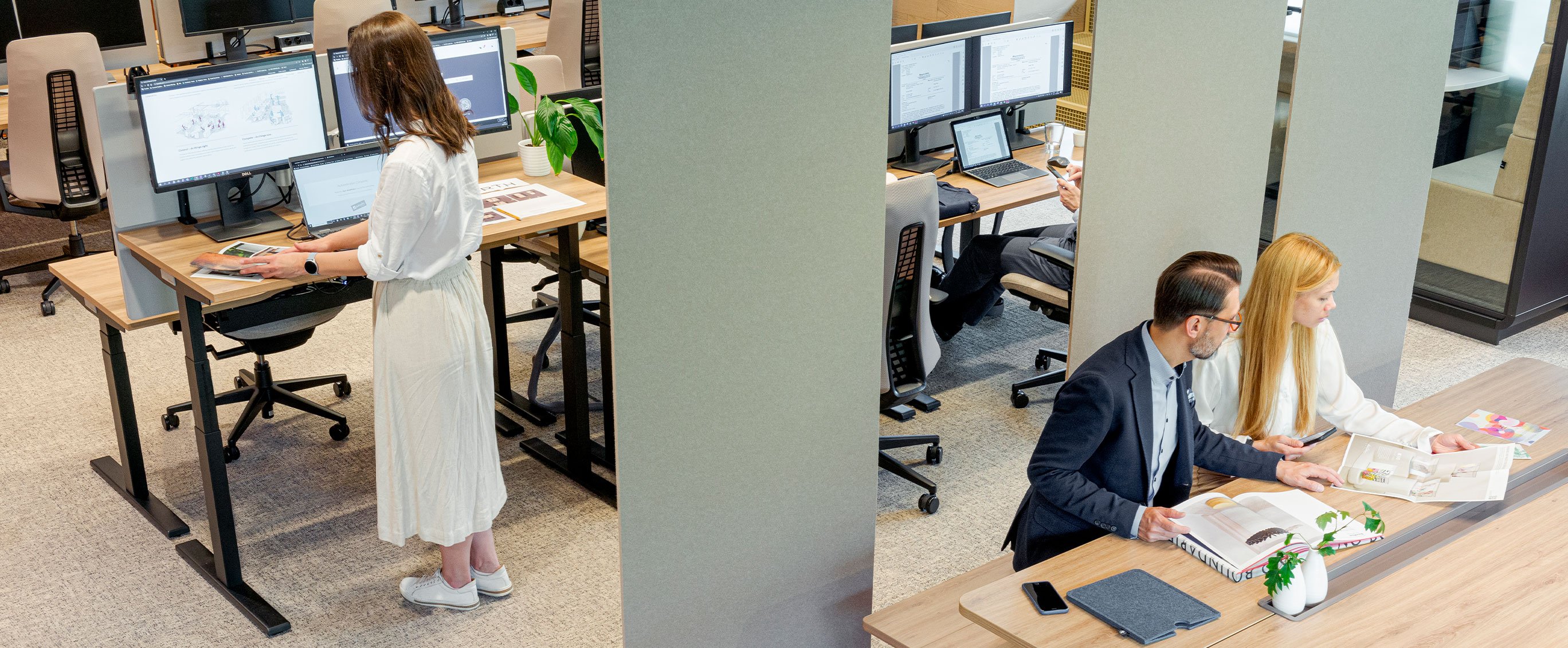
Your desk should allow comfortable arm positioning and clear legroom. If you use a standing desk, learn the correct standing height for your measurements and alternate between sitting and standing throughout the day.
- Clear under-desk storage so your legs can move freely — a tip echoed by the Mayo Clinic.
- Keep frequently used items within easy reach.
5. Light, glare, and screen care
Good lighting reduces eye strain and headaches. Position your monitor perpendicular to windows to avoid glare. Use blinds or shades when needed and adjust screen brightness to match room light.
- Use a task light for paperwork instead of bright overhead lights.
- Consider blue-light filters or night mode for late work sessions.
How to Set Up a Healthy Workstation: Home-office specifics
When working from home, you may not have a dedicated ergonomic setup right away. The New Zealand Worksafe guidance and OSHA’s eTools offer practical tips for home setups — from chair height to backrest adjustments — that you can use with household furniture.
Helpful resources:
WorkSafe NZ and OSHA’s computer workstation eTool provide clear how-tos for home workers.
Accessories that make a difference
Small additions improve comfort a lot. Wirecutter’s roundup lists essential items to consider for an ergonomically correct workstation, such as a good chair, monitor arm, and keyboard choices.
- Monitor arm — frees up desk space and allows exact screen height adjustments. (See recommendations from Wirecutter.)
- Footrest — useful when feet don’t reach the floor comfortably.
- Document holder — keeps papers at screen height to avoid looking down repeatedly.
- Anti-fatigue mat — for standing desk users to reduce leg fatigue.
Movement and microbreaks
Even the best setup can’t replace movement. Schedule frequent microbreaks — stand, stretch, or walk for a minute every 30 minutes and a longer break each hour. This reduces stiffness, improves circulation, and keeps your brain sharp.
Try the 20-8-2 approach: work seated for 20 minutes, stand for 8, and move for 2. Adjust the rhythm to what fits your workflow.
Common mistakes to avoid
- Slouching: Avoid slumping forward even if your chair is cushy.
- Monitor too low: causes neck flexion and strain.
- Keyboard too high: lifts shoulders and causes tension.
- Clutter under desk: blocks leg motion — the Mayo Clinic warns that storing items under the desk reduces legroom and can lead to poor posture.
Ergonomic setup examples
Here are quick setups tailored to common work styles:
Full desktop user
- Large monitor on arm at eye level.
- Ergonomic keyboard and mouse within easy reach.
- Chair with lumbar support; feet flat.
Laptop user
- Use laptop stand to raise screen and external keyboard/mouse for typing.
- Close the laptop or set up as secondary screen when possible.
Hybrid/Standing desk user
- Alternate sitting and standing (start with short standing intervals and build up).
- Use an anti-fatigue mat and keep torso upright; elbows at ~90 degrees.
When to get professional help
If you have persistent pain, tingling, or numbness while working, consult a health professional. Orthopedic and physical therapy clinics, such as the resource from OrthoCarolina, offer targeted guidance to adapt your workstation to medical needs.
Checklist: Final review
Go through this quick review to confirm your setup is healthy:
- Top of monitor at eye level.
- Straight wrists and relaxed shoulders while typing.
- Chair supports lower back and keeps feet flat.
- Enough under-desk clearance, no clutter.
- Good lighting and minimal screen glare.
- Regular movement breaks scheduled.
Watch: A visual walkthrough
See a step-by-step demonstration to reinforce these tips.
Products & where to learn more
For product picks and buying guidance, check Wirecutter’s list of essentials and consider reputable medical sources for health-based advice. Helpful reads:
- Wirecutter: 7 things you need
- Mayo Clinic: Office ergonomics guide
- WorkSafe NZ: Working from home setup tips
- OSHA eTool: Computer Workstations
- OrthoCarolina: How to setup a healthy workstation
Wrap-up
Follow the steps above and you’ll be well on your way to a healthier, more comfortable day at the desk. Remember, How to Set Up a Healthy Workstation is a practical habit — one small adjustment at a time leads to big gains in comfort and productivity.
Ready to make a change? Start with one adjustment today — monitor height or chair position — and build from there.
FAQ
How often should I take breaks at my workstation?
Short breaks every 30 minutes help reduce strain. Aim for a 1–2 minute stretch or standing pause each half hour, and a longer 5–10 minute walk every hour. Microbreaks improve circulation and focus.
What chair features really matter?
Look for adjustable seat height, good lumbar support, and a seat depth that allows 2–3 fingers between the seat edge and your knees. Armrests that adjust can help reduce shoulder tension. Try chairs in person when possible.
Is a standing desk better than sitting all day?
Standing desks help reduce prolonged sitting, but standing all day isn’t ideal either. Alternate between sitting and standing, use an anti-fatigue mat, and keep good posture. Start with short standing periods and increase slowly.
How do I set up a laptop ergonomically?
Raise the laptop screen with a stand to bring the top third of the screen to eye level and use an external keyboard and mouse to maintain neutral wrist and elbow positions.
Next steps: Try one change this week — adjust your monitor height or clear clutter under the desk — and notice how you feel. For more practical guides, explore zenpulsehub.com and keep building a workspace that supports your wellbeing.